Make your first voice
Install a speech engine and generate your first clip.
Make your first voice
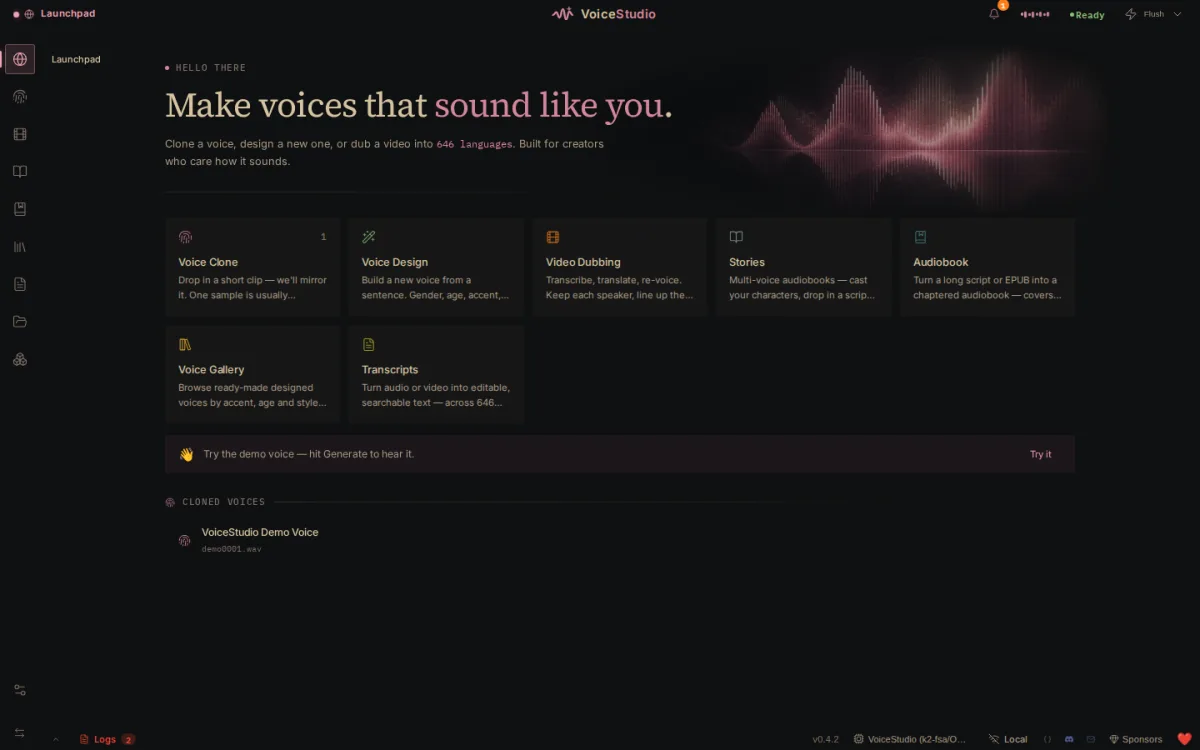
VoiceStudio opens on Launchpad, a map of its workspaces. This run takes you from setup to your first clip.
1. Finish local setup
On first launch, let setup check the backend and storage folders. If it asks for a speech engine, open Model Catalogue, pick one that suits your hardware and choose Install.
It's ready when its status reads ready. Downloads can be large, so leave the app open.
2. Open the Voice workspace
From Launchpad, choose Voice clone, or Voice in the sidebar. Keep the method on From audio and use a bundled or saved voice. Clone your own recording once this works.
3. Generate a short line
- Enter one or two sentences in Script.
- Confirm the selected voice and language. Auto is a good first choice.
- Select Synthesize Audio.
- Wait for the result player, then press play.
If the clip shows up in History and plays, local speech works.
Know the navigation
The sidebar holds Voice, Dub, Stories, Audiobook, Gallery,
Transcripts, Projects and Catalogue; Settings is at the bottom.
Ctrl+E (Cmd+E on macOS) opens the engine quick switch.
Next: clone a voice, design a voice, or manage models and settings.