Use the Voice Gallery
Preview bundled, community, and imported voices and move one into a production workflow.
Use the Voice Gallery
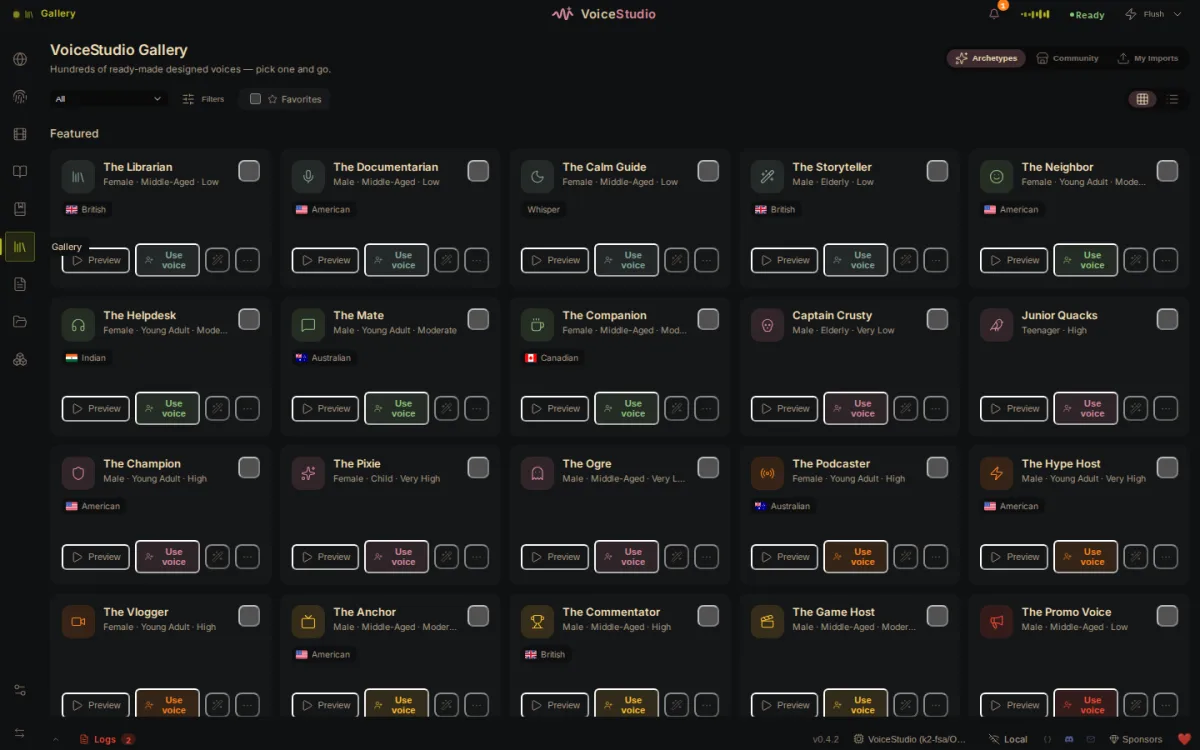
Open Gallery to browse voices before committing to a script. The available zones can include Archetypes, Community, and My Imports.
Find and preview
Use category and attribute filters to narrow the list, then choose Preview on a card. Audition several voices with comparable text and listen for language fit, articulation, and the emotional range your production needs.
Put a voice to work
Choose Use voice to make the selected voice available to the Voice workspace. Depending on the card, you can also choose Use in Stories or set it as the Audiobook default.
A gallery selection creates or reuses a local profile; it does not require a Cloud account. Community or imported items can have their own license terms, so review the item source before publishing commercial work.
Next: make a first voice clip, create a story, or create an audiobook.