Manage models and settings
Install compatible engines and models, choose defaults, inspect health, and understand local storage.
Manage models and settings
VoiceStudio separates model installation from app preferences. Use Model Catalogue for engines and models; use Settings for paths, performance, updates, credentials, and diagnostics.
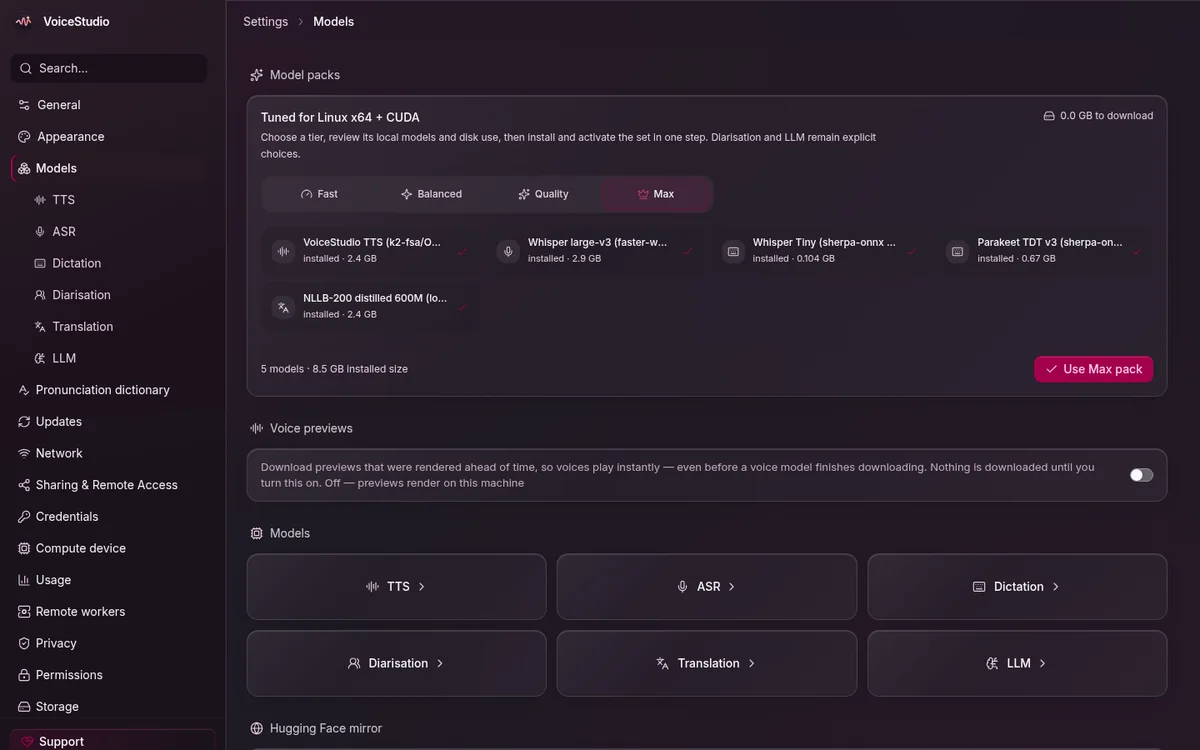
Install an engine or model
- Open Catalogue in the sidebar or press
Ctrl+E/Cmd+Efor the quick switch. - Use Engines to compare capabilities and hardware compatibility.
- Use Models to install the speech, recognition, or supporting model you need.
- Wait for the progress indicator to finish, then select the engine as the default for its workflow.
Do not interrupt a model download. If one becomes partial, reopen the model in Catalogue and use its repair or install action.
Review Settings
Open Settings to inspect the models directory, cache location, compute preference, updates, language, UI scale, dictation shortcut, and system health. Optional remote-compatible engines may request their own credentials; local engines do not require a VoiceStudio account.
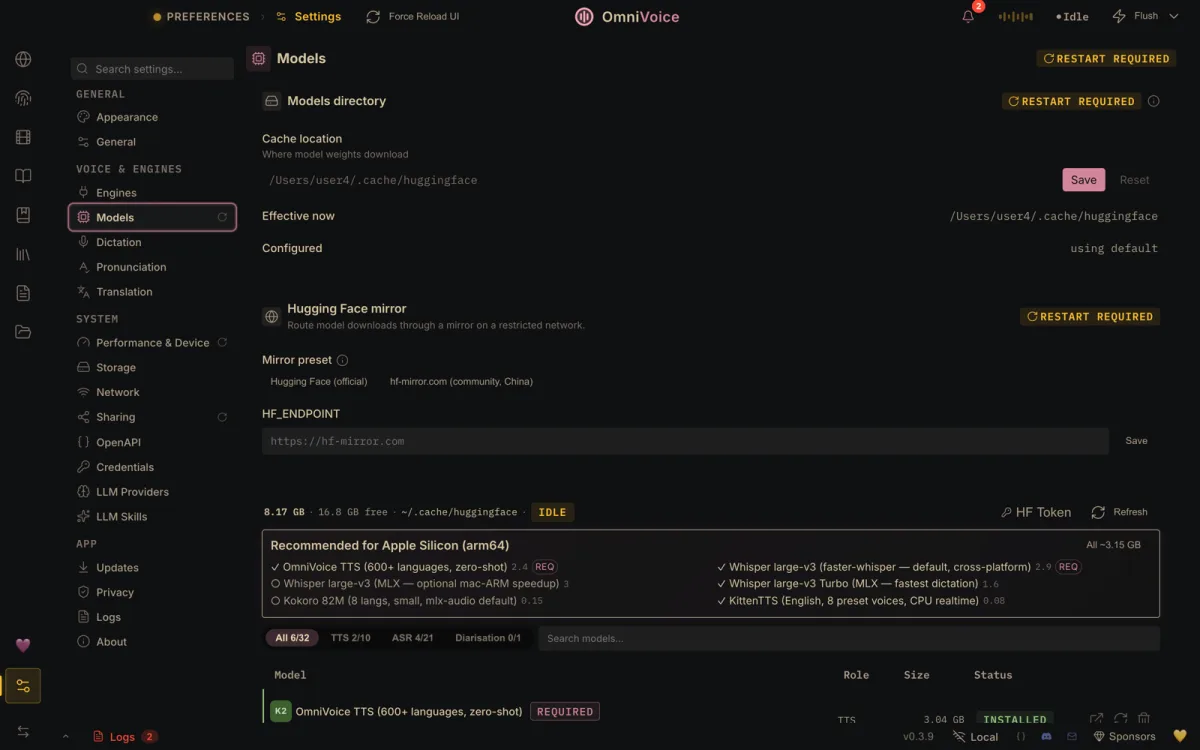
Storage and troubleshooting
Voice recordings, profiles, project files, transcripts, models, and generated audio live on the workstation paths shown by the app. Back up outputs you need, and protect those directories as sensitive data.
When a workflow fails, first confirm that the selected engine is installed and ready, then open the app logs or system check. A smaller compatible model can help when the current model exceeds available memory.
Some third-party models or engines have separate licenses and usage terms. Review them before distributing generated work.